
The Health Check within WealthWorks+ > Options > System Administration can indicate potential issues within your database. In the event users would like to explore these further, and make corrections, please follow these instructions.
Document Store
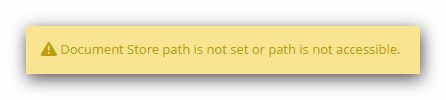
To enter a Document store path, navigate to WealthWorks+ > Options > System Administration > Other Settings > Document and ensure the 'DocumentStoreLocation' has a full UNC path to a centrally located shared folder to store documents. Also, ensure the IIS worker process account has full permissions to this folder.
Contact Security Groups

To manage your Contact Security Groups, please see Managing Security Groups in WealthWorks+, Release 4.16.
Please note, that tutorial reflects the changes made to the Security Group functionality introduced in WealthWorks+ from release 4.16 onward. For those users using an earlier version of WealthWorks+ and requiring assistance on managing Security Groups in WealthWorks+, please see Managing Security Groups in WealthWorks+, Release 4.7 to 4.15.
Navigate to WealthWorks+ > Reporting > Reports to run an 'Unassigned Contacts' report which might assist you in locating those records not assigned to a group.
Asset or Liability Types

There are x Asset or Liability Types which are missing definitions of their type.
To review and correct these missing definitions, navigate to WealthWorks+ > Options > Data Configuration > Asset Types > 'Asset Types Missing Definition'. A count column exists to show whether each description is already in use - helpful to prioritise those needing immediate attention.
To resolve the warning, select the relevant descriptions and click 'Assign as Asset Type'. Once saved, these Asset Types become available in the Asset Type drop-down lists system-wide.
Navigate to WealthWorks+ > Options > Data Configuration > Liability Types > 'Liability Types Missing Definition' to repeat for missing liability types.
Asset or Liability Categories

There are x Asset or Liability Categories which are missing definitions of their type.
To review and correct these missing definitions, navigate to WealthWorks+ > Options > Data Configuration > Asset Types > 'Asset Categories Missing Definition'. A count column exists to show whether each category is already in use - helpful to prioritise those needing immediate attention.
To resolve the warning, select the relevant categories and click 'Assign as Asset Category'. Once saved, Asset Categories can be managed under their corresponding Asset Type and will appear in the appropriate drop‑down lists system-wide.
Navigate to WealthWorks+ > Options > Data Configuration > Liability Types > 'Liability Categories Missing Definition' to repeat for missing liability categories.