
Overview
Effective from WealthWorks+ release 4.21, our new document templating and generation tool Plus Composer became available to users. For those users wishing specifically to create or edit their own templates, you will need to install the new Plus Composer Word Add-in. This can be installed in two different ways and can run either off our publicly available web service, or your local Plus web application.
Manifest File
The Add-in can either be served from our public web service or from your local installed Plus Web Application. To run it from your local server, the service needs to be running through a secure connection through https.
- Public Service
The manifest is served from https://www.wealthworksplussupport.com/AddIn/WordManifest and can be deployed using Microsoft 365 Admin Center from here. It can also be downloaded from this link, for copying into a trusted folder. - Local Web App
The manifest is also served from the locally installed Plus server from https:<yourservername>/AddIn/WordManifest, and can be downloaded from https:<yourservername>/AddIn/WordManifestFile.
Installation
- Public Services - Installing using Trusted Folders
Within Microsoft Word, select File > Options > Trust Center > Trust Center Settings, select Trusted Add-in Catalogs and within the 'Catalog Url:' box, enter the network shared folder path (UNC) to your trusted file location within the \TWWDATA folder on your app or file server: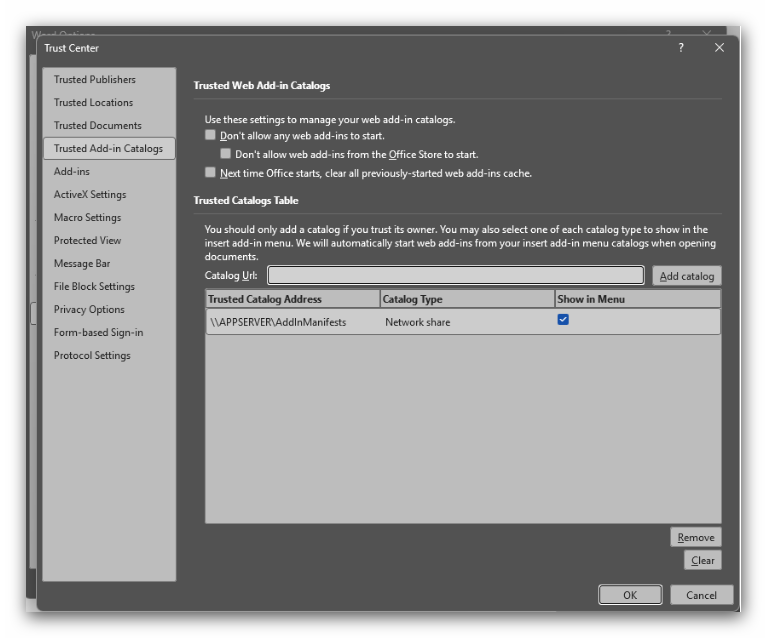
- Local Web App - deploy using Microsoft 365 Admin Center
Open Microsoft 365 Admin Center from your browser. Select Settings > Integrated Apps. Click the Add-ins link at the top of the page, then Upload custom apps. From this modal select 'Office Add-in' as the app type, and then either upload the Manifest file, else provide a secure https link to the manifest file: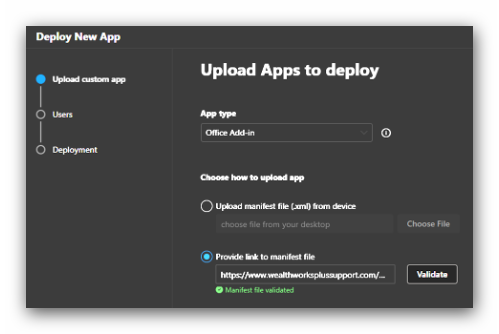 Select the users you wish to deploy this for, and finish the deployment. Within 24 hours this will then be available to all users you have published this to.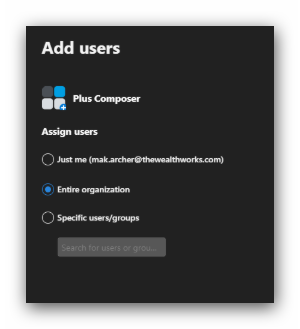
Using the Composer Add-in
Once the Add-in has been made available to a user, they should find it under the Ad-ins menu, either under the Advanced menu option, else in the Store under the Built for your org section.
Selecting this will add a new Plus Composer menu item to Word. Clicking this, and then Open Field Library will load up the sidebar for creating and editing Composer templates.
Templates can then be uploaded to your Plus application using the Options > System Administration > Composer Admin page.