
For those clients requiring an additional User Acceptance Testing (UAT) site to operate, the following notes will help outline the additional setup.
For some clients, this UAT site is a vital part of ensuring that new releases or features are thoroughly tested before they go live. For others, it acts more as a sandbox environment, where actions can be tested first, before being repeated in production.
Production/UAT to Operate on Same Releases
As both production and UAT SQL databases can share the same Troika and WealthWorks+ programs, this is more straightforward.
Restore a copy of the production SQL database and identify it as UAT (e.g. if the production database is named 'Troika', perhaps 'Troika_UAT'). Use the instructions on 'Restoring the SQL database backup' here for guidance.
Copy the existing troiksql.ini configuration file and name troikasqlUAT.ini.
Create a new Troika Desktop shortcut to fpsStart.exe within C:\Program Files(x86)\TWW\Troika, labelled 'Troika UAT'. Configure that shortcut to look specifically to C:\Program Files(x86)\TWW\Troika\fpsStart.exe troikasqlUAT.ini.
Create a new DSN connection to the new Troika UAT SQL database. Use the 'Create DSN' instructions within 'Installing the Workstation Troika Programs' here for guidance.
Select the DSN using the 'Select DSN' instructions within 'Installing the Workstation Troika Programs' here for guidance. Close and save.
Within your WealthWorks+ installation, create a further Connection String for the UAT database. See 'Method 1' in the following article for help with this:
Installing WealthWorks+ more than once on the same IIS server
Once complete, to allow the Troika UAT Desktop to access your existing WealthWorksPlus site, the 'System Settings' in the Troika Utilities modules needs to be amended. From the Utilities module, System tab, and the System Settings menu option, a section 'WealthWorks+ System Settings' can be accessed to update both the URL and Connection String name for this new UAT connection.
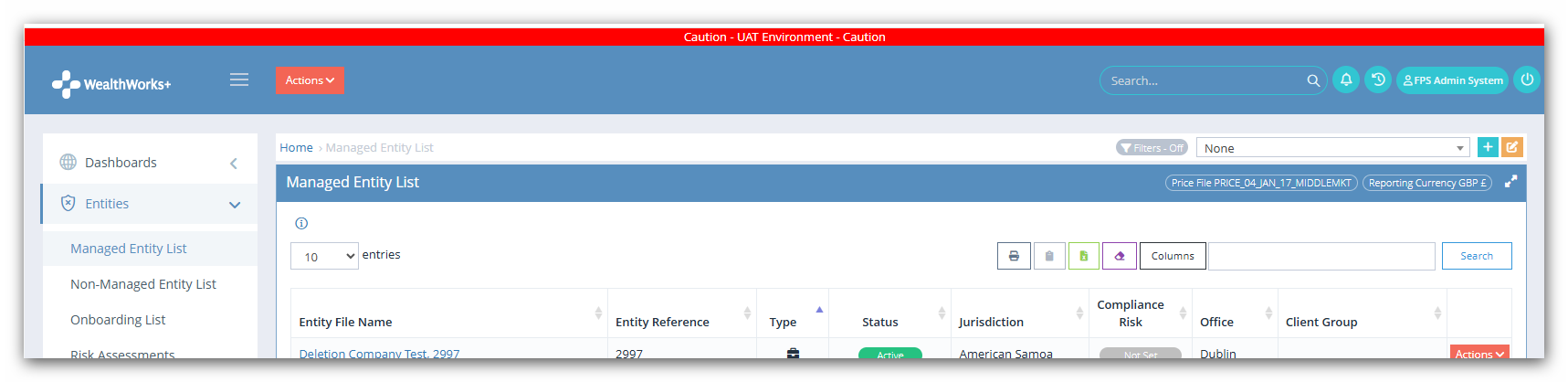
To identify the new UAT connection to WealthWorks+ as UAT, it is advisable to make use of our page banner settings. Within WealthWorks+ > Options > System Administration > Other Settings > Page Banner Settings, Page Banner Text, amend the text, e.g. 'Caution - UAT Environment - Caution'. You can also amend the Page Banner Background Colour, e.g. 'red'. Click Save to save the changes.
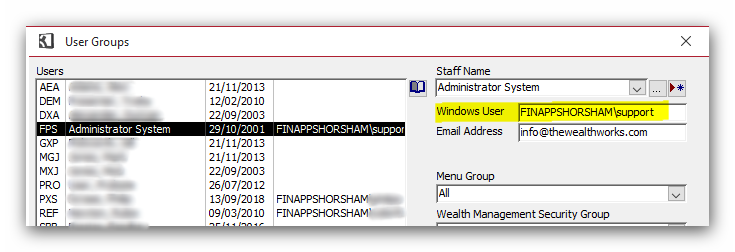
To avoid users signing into the UAT database using existing production single sign-in details, existing Windows Authentication content in user records on the UAT database should be deleted. Access the Utilities module, Security tab and the menu option User Groups - Edit and remove all 'Windows User' content for all users:
Finally, another way for users to distinguish between the two environments is to set their passwords to be different. Using the attached as a template, amend user login credentials, and copy/paste further lines, if required. Run the command as a SQL query against the UAT SQL database.
As the password is already encrypted, it should not be changed. Once the script is run, all UAT passwords for users will be set to 'uatpassword'.
It is also worth considering whether all users require UAT access. In the event any do not, you can disable their account within the UAT database, by accessing the Troika Utilities module, Security tab, and the menu option User Groups - Edit. Select the login not requiring UAT access from the left-hand side, and uncheck the 'Enable Account' option on the right-hand side. This will disable their account in UAT. Repeat, and Close to save.
Production/UAT to Operate on Different Releases
In this scenario, if you are intending to test new releases before they're pushed into production, your production and UAT SQL databases will need to be set to use different Troika and WealthWorks+ programs. Essentially, two clean environments will need to be created, to keep them separate.
Firstly, create a second central location specific to the UAT files and folders. Copy the \Master and \Release folders from \\SERVERNAME\TWWDATA (often mapped as T:\) to \\SERVERNAME\TWWDATA_UAT.
Create a second local location for individual program files and folders. Copy the \Troika folder from C:\Program Files(x86)\TWW\ to \Troika_UAT.
Restore a copy of the production SQL database and identify it as UAT (e.g. if the production database is named 'Troika', perhaps 'Troika_UAT'). Use the instructions on 'Restoring the SQL database backup' here for guidance.
Create a new Troika Desktop shortcut to fpsStart.exe within C:\Program Files(x86)\TWW\Troika_UAT, labelled 'Troika UAT'.
Create a new DSN connection to the new Troika UAT SQL database. Use the 'Create DSN' instructions within 'Installing the Workstation Troika Programs' here for guidance.
Select the DSN using the 'Select DSN' instructions within 'Installing the Workstation Troika Programs' here for guidance.
Amend the troiksql.ini configuration file within C:\Program Files(x86)\TWW\Troika_UAT from \\SERVERNAME\TWWDATA to \\SERVERNAME\TWWDATA_UAT.
In order to create your second WealthWorks+ installation, create a further website for the UAT database. See 'Method 2' in the following article for help with this:
Installing WealthWorks+ more than once on the same IIS server
Once complete, to allow the Troika UAT Desktop to access the new WealthWorksPlus site, the 'System Settings' in the Troika Utilities module needs to be amended. From the Utilities module, System tab, and the System Settings menu option, a section 'WealthWorks+ System Settings' can be accessed to update both the URL and Connection String name for this new UAT connection.
To identify the new UAT WealthWorks+ site as UAT, it is advisable to make use of our page banner settings. Within WealthWorks+ > Options > System Administration > Other Settings > Page Banner Settings, Page Banner Text, amend the text, e.g. 'Caution - UAT Environment - Caution'. You can also amend the Page Banner Background Colour, e.g. 'red'. Click Save to save the changes.
To avoid users signing into the UAT database using existing production single sign-in details, existing Windows Authentication content in user records on the UAT database should be deleted. Access the Utilities module, Security tab and the menu option User Groups - Edit and remove all 'Windows User' content for all users:
Finally, another way for users to distinguish between the two environments is to set their passwords to be different. Using the attached as a template, amend user login credentials, and copy/paste further lines, if required. Run the command as a SQL query against the UAT SQL database.
As the password is already encrypted, it should not be changed. Once the script is run, all UAT passwords for users will be set to 'uatpassword'.
It is also worth considering whether all users require UAT access. In the event any do not, you can disable their account within the UAT database, by accessing the Troika Utilities module, Security tab, and the menu option User Groups - Edit. Select the login not requiring UAT access from the left-hand side, and uncheck the 'Enable Account' option on the right-hand side. This will disable their account in UAT. Repeat, and Close to save.
Important
After the UAT site is up and running, testers should be briefed on how to access the environment and report any issues or feedback.
Users must pay careful attention at all times to ensure they are accessing the correct environment.
It would be advisable to ensure any SQL backup maintenance plan is extended to include this UAT environment, in the event of any troubleshooting required. For assistance with maintenance plans, review the following Support Portal article:
Backup and Maintenance Requirements of the SQL Database
This article was last reviewed 04/2026.